By Marty Norman | Lead Creative at Byte Bee
The Problem Every Three.js Developer Faces
If you’ve ever worked with Three.js for web projects, you know the pain: setting up camera positions and transitions is tedious, time-consuming, and involves endless trial-and-error with numerical values in your code. You tweak a coordinate, refresh the browser, realize it’s not quite right, go back to your code, adjust again, refresh… repeat fifty times.
For a recent client project requiring scroll-driven 3D navigation with multiple camera viewpoints, I found myself in this exact situation. The project demanded precise camera positioning for five different sections, smooth transitions between them, and a polished user experience. The standard workflow simply wasn’t cutting it.
That’s when I decided to build something better.
The Vision: Blender Meets Browser
As someone who works across both Blender and web development, I noticed a fundamental disconnect. In Blender, positioning cameras is intuitive—you use familiar navigation controls, see your changes in real-time, and can fine-tune everything visually. But when it came time to translate those perfect camera angles to Three.js code? You were back to guessing coordinates and hoping for the best.
The solution seemed obvious: create a browser-based configuration tool that brings Blender’s intuitive camera workflow directly into the Three.js development process.
What Makes This Tool Different
1. Blender-Style Navigation
The tool implements exact Blender navigation controls:
- Middle Mouse Button: Orbit/rotate view
- Shift + Middle Mouse: Pan the camera
- Scroll Wheel: Zoom in and out
No learning curve if you’re already familiar with Blender. For those who aren’t, it’s still more intuitive than typing coordinates blindly.
2. Real-Time Visual Feedback
Load your GLB model, and immediately see how it will look in your Three.js scene. Position your camera using familiar controls, and watch the coordinates update in real-time. No more code-refresh-check cycles.
3. Section-Based Workflow
Web projects often need multiple camera viewpoints—homepage, gallery, contact section, etc. The tool lets you:
- Create named camera positions for each section
- Set individual look-at targets for precise framing
- Configure default positions for smooth transitions between sections
- Export everything as production-ready JavaScript config
4. Advanced Camera Controls
Beyond basic positioning, the tool offers:
- Pivot point adjustment: Change where the camera orbits around (crucial for tall or complex models)
- Look-at rail mode: Lock the look-at target to individual axes, Blender-style
- Pan mode: Slide the camera along axes while maintaining viewing angle
- Direct coordinate input: Fine-tune with precision when visual adjustment isn’t enough
5. Production-Ready Output
Click “Copy Configuration” and get a complete JavaScript CONFIG object ready to paste into your Three.js scene. No manual transcription, no typos, no hassle.
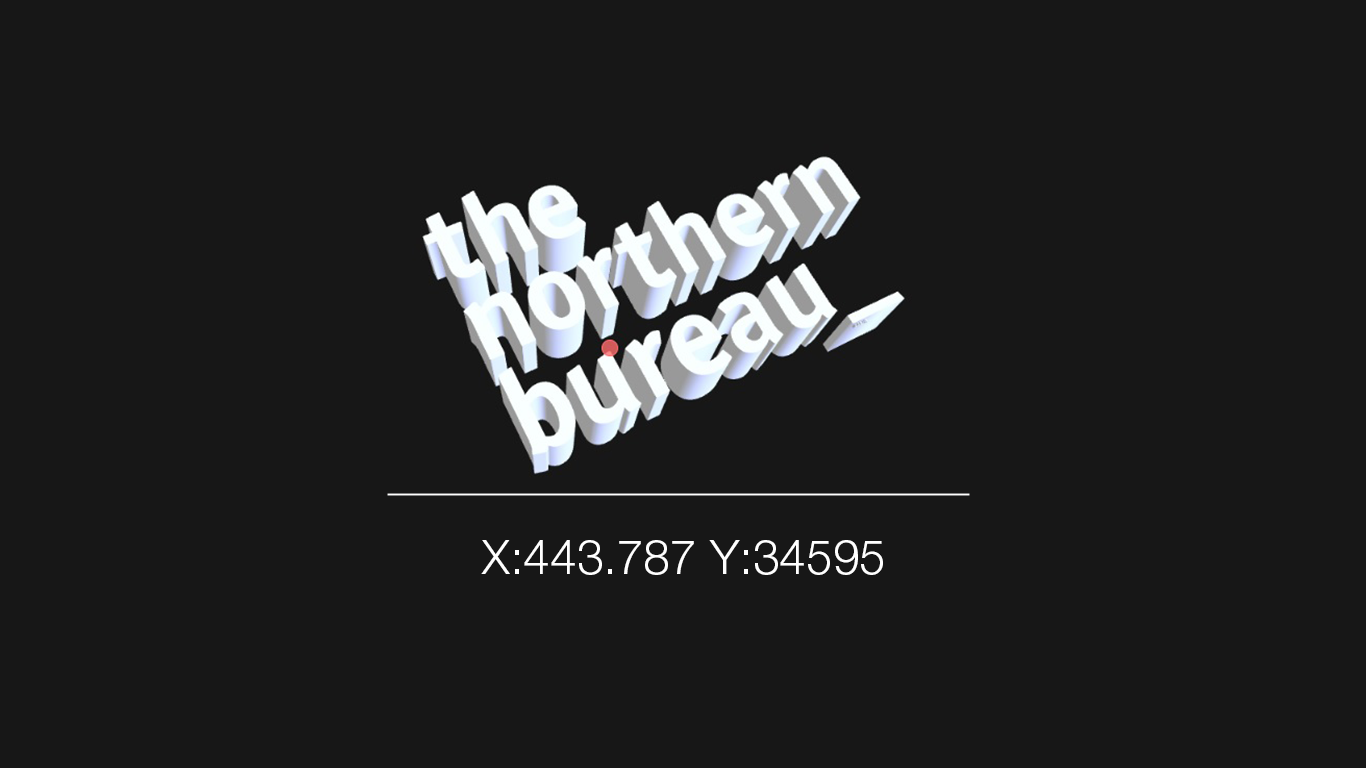
Real-World Application: Scroll-Driven 3D Navigation
The client project that sparked this tool’s development provides a perfect use case. The requirements were:
- Fixed 3D background with a rotating model
- Five content sections (Home, Case Studies, Gallery, Blog, Contact)
- Static camera when users read content
- Smooth animated transitions between sections as users scroll
- Separate default positions for each transition to avoid the camera path intersecting the model
The Traditional Approach (Painful)
Without the config tool, this would mean:
- Manually guessing 15+ camera positions (5 sections + 4 transitions + multiple defaults)
- Editing code, saving, refreshing browser dozens of times
- Struggling to visualize the 3D space from numerical coordinates
- High risk of camera paths cutting through the model
- Hours of frustration and wasted development time
With the Config Tool (Streamlined)
- Load the model once in the config tool
- Visually position cameras for each section using Blender controls
- Set up transition defaults by orbiting to safe positions around the model
- Export the complete configuration in seconds
- Paste into production code and it just works
The time saved is measured in hours, not minutes. But more importantly, the quality of the result is significantly better because you can actually see what you’re doing.
Technical Implementation Highlights
For fellow developers interested in the technical side, here are some key implementation details:
Camera Position Export
The tool extracts exact camera coordinates and look-at targets:
const CONFIG = {
    sections: {
        home: {
            camera: { x: 10.072777, y: 120.166011, z: 13.070769 },
            lookAt: { x: 17.800000, y: -26.900000, z: 0.500000 }
        },
        // ... more sections
    }
}
Blender-Style Control Configuration
Three.js OrbitControls configured to match Blender exactly:
controls.mouseButtons = {
    LEFT: null,  // Disable default rotation
    MIDDLE: THREE.MOUSE.ROTATE,  // Blender-style orbit
    RIGHT: null
};
controls.minPolarAngle = 0;  // Allow full rotation
controls.maxPolarAngle = Math.PI;  // Including top/bottom views
Dynamic Pivot Points
Adjustable orbit center for complex models:
controls.target.set(pivotX, pivotY, pivotZ); // Orbit around any point
This solves the common problem of not being able to view the top or specific parts of tall models.
The Value for Web Design
For Developers
- Faster iteration: See changes instantly instead of code-refresh cycles
- Better results: Visual positioning beats numerical guessing
- Reduced errors: No manual coordinate transcription
- Lower barrier to entry: Makes Three.js more accessible
For Clients
- Shorter timelines: What took days now takes hours
- Higher quality: Better camera angles mean better user experience
- More affordable: Less developer time = lower costs
- Easier collaboration: “Can we see it from the top?” is now a 30-second adjustment
For the Industry
This tool represents a broader trend: bridging the gap between 3D authoring tools and web development. As 3D content becomes more prevalent on the web, we need workflows that are as intuitive as the tools that create the 3D assets themselves.
Future Enhancements
The tool continues to evolve based on real project needs. Upcoming features include:
- Bezier curve path export from Blender: Animate cameras along custom curves instead of linear interpolation
- Animation timeline: Preview transitions before exporting
- Multiple model support: Compare camera positions across different model versions
- Preset library: Save and reuse common camera configurations
Open Development Philosophy
This tool was built through practical necessity, refined through real client work, and improved through an iterative problem-solving process. It’s not a finished product—it’s a living tool that grows with the needs of web developers working with Three.js.
The development process itself was collaborative, with each challenge leading to a new feature:
- “I can’t see the top of my model” → Pivot point controls
- “These coordinates don’t match Blender” → Aspect ratio fixes
- “I need different paths for each transition” → Multiple default positions
- “The animation is too fast” → Configurable transition speeds
Conclusion
Building 3D experiences for the web shouldn’t require psychic abilities to guess coordinates. By bringing Blender’s intuitive workflow into the browser, this configuration tool transforms Three.js camera setup from a frustrating guessing game into a visual, creative process.
For freelance developers like myself, tools like this aren’t just about saving time—they’re about delivering better results for clients and making sophisticated web experiences more accessible to create. When you can focus on design and user experience instead of fighting with coordinates, everyone wins.
The web is becoming increasingly three-dimensional. Our tools should evolve to match.
About the Author: Martyn Norman is a lead creative digital content creator at Byte Bee
Project Links:
- Config Tool: [Available for download]
- Production Example: The Northern Bureau website
- Contact: [Your contact information]